Preview
Your QR code will appear here as soon as the form is complete.
View encoded content
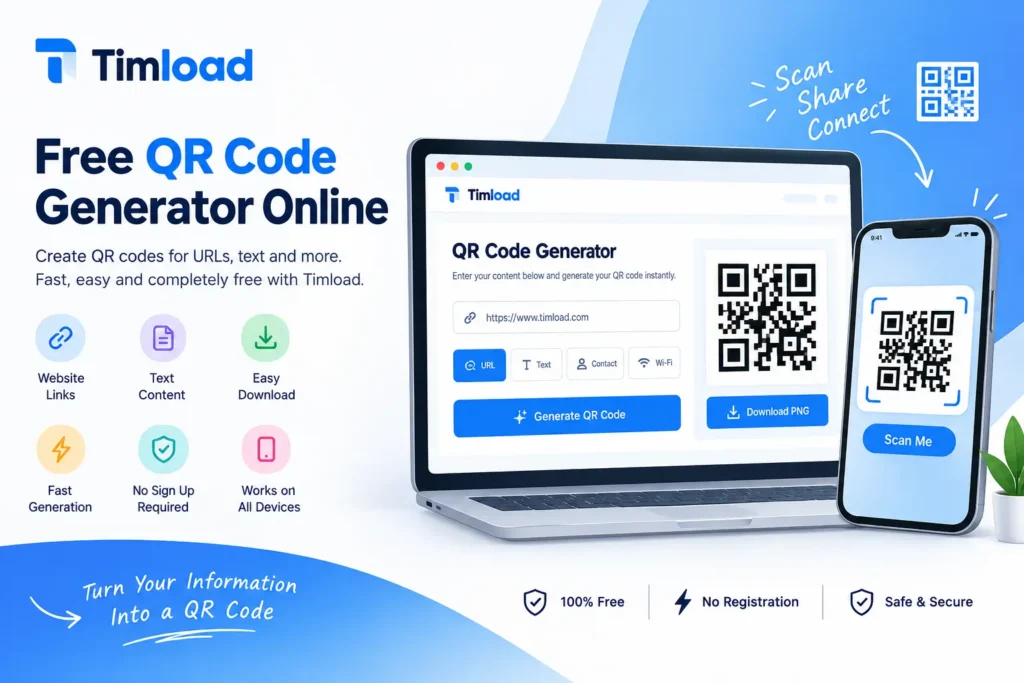
Need a QR code for your website, menu, business card or Wi-Fi network? This free QR code generator makes one in seconds. Pick the type of code, fill in the details, choose your colours and size, then download it as PNG or SVG. There is no account to create and no watermark on your code.
How to Create a QR Code
- Choose the QR code type: Website URL, Plain text, Email, Phone, SMS, Wi-Fi, WhatsApp or Contact (vCard).
- Fill in the details. For a website, paste the link; if you leave out https://, it is added for you. For phone and WhatsApp numbers, include the country code.
- Style it. Pick a foreground and background colour and a size from 128 × 128 px up to 1024 × 1024 px.
- Set error correction. Medium (M) suits most uses. Choose High (H) if the code will be printed on something that can get scratched or dirty.
- Generate and test. Click Generate QR code, then scan the preview with your phone camera before you print it.
- Download. Save it as PNG or SVG, or use Copy image to paste it straight into a document.
Types of QR Codes You Can Make
| QR code type | What happens when someone scans it | Good for |
|---|---|---|
| Website URL | Opens your web page | Flyers, packaging, shop windows |
| Wi-Fi | Joins your Wi-Fi network without typing a password | Cafés, offices, guest rooms |
| Opens a WhatsApp chat with your number, with an optional ready-made message | Small businesses, delivery orders | |
| Contact (vCard) | Saves your name, phone, email, company and website to their contacts | Business cards, event badges |
| Opens a new email to you, with a subject and message if you add them | Support requests, feedback | |
| Phone and SMS | Starts a call or a text message to your number | Posters, service vans, signboards |
| Plain text | Shows the text on screen | Instructions, codes, short notes |
Tips for a QR Code That Always Scans
- Keep strong contrast. A dark code on a light background scans best. Avoid light-on-dark and pale colours like yellow.
- Don’t print it too small. About 2 × 2 cm is the minimum for something held in the hand. For posters, make it bigger, roughly one tenth of the expected scanning distance.
- Leave a margin. Keep a clear border around the code and don’t place it right against busy artwork.
- Use short links. Long URLs make the code denser and harder to scan. A short, clean link gives a simpler pattern.
- Use SVG for print. SVG files stay sharp at any size, so printers prefer them for banners and packaging.
- Test before you print. Scan the code with two different phones, in normal light, from the distance people will actually use.
Error Correction Explained
Error correction lets a QR code still work when part of it is damaged or covered. Low (L) can recover about 7% of the code, Medium (M) about 15%, Quartile (Q) about 25% and High (H) about 30%. Higher levels make the pattern denser, so use H only when the code might get scratched, folded or partly hidden, for example on outdoor signs or product labels.
Frequently Asked Questions
Is this QR code generator really free?
Yes. You can create and download as many QR codes as you like, with no sign-up and no watermark.
Do these QR codes expire?
No. These are static QR codes, so the information is stored inside the code itself. A website QR code keeps working for as long as the website address works.
Can I change a QR code after printing it?
No. Because the content is inside the code, you need to create a new one if the link or details change. If you expect changes, point the code at a page you control and update that page instead.
Should I download PNG or SVG?
Use PNG for websites, social media and documents. Use SVG for printing, especially large prints like posters and banners, because SVG stays sharp at any size.
Why won’t my QR code scan?
The usual causes are low contrast, a code printed too small, or a light code on a dark background. Use a dark colour on a light background, print it at least 2 cm wide and choose a higher error correction level.
Can I make a QR code that connects to Wi-Fi?
Yes. Choose Wi-Fi, enter the network name, security type and password, and anyone who scans the code can join without typing the password.
Related Free Tools
- Image Compressor – shrink JPG, PNG and WebP files
- JPG to PDF Converter – put photos and scans into one PDF
- Word Counter – count words and characters as you type