Merge PDF Files Online
Combine multiple PDF files into one document quickly and easily.
The PDF merging library could not be loaded.
Check your internet connection, turn off any ad blocker or script blocker for this page, then reload the page and try again.
Add at least two PDF files to enable merging.
Your PDF is ready.
Privacy notice: your files are processed locally in your browser. This tool does not intentionally upload your PDF files to our server.
How to Merge PDF Files
- Add your PDFsDrag and drop two or more PDF files, or click the upload area to select them.
- Set the orderUse the up and down buttons to arrange the files. Remove any you do not need.
- Merge and downloadClick Merge PDF, then download your combined document.
How to Merge PDF Files
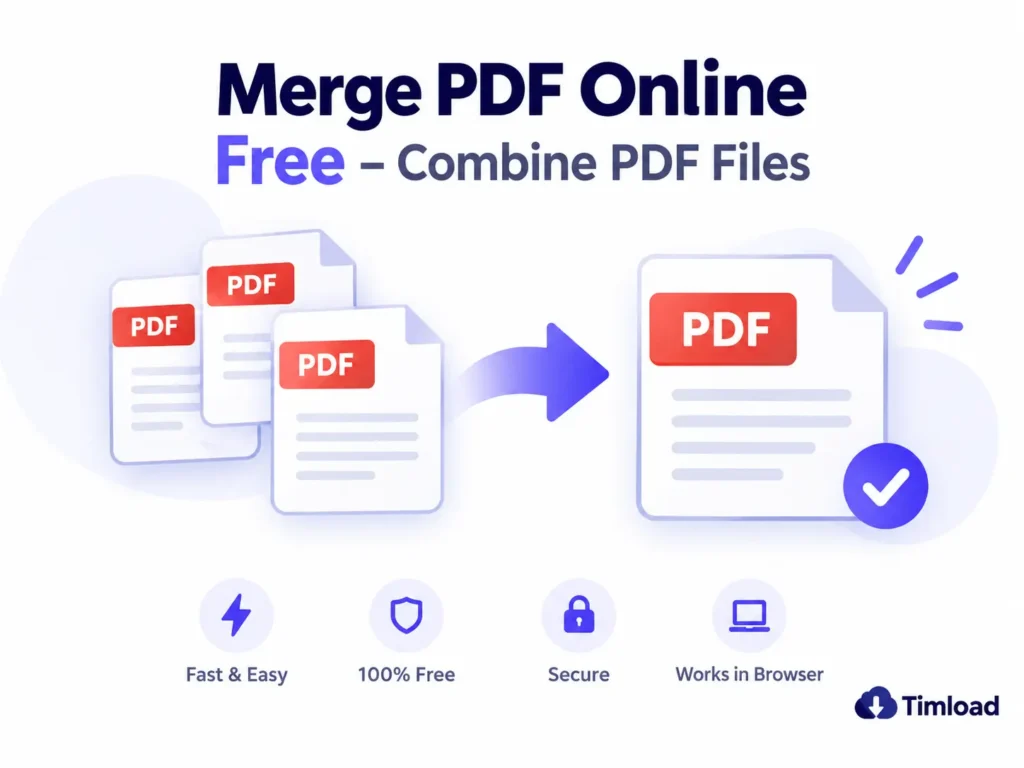
- Add your PDFs. Drag two or more PDF files into the box above, or click it to choose files from your device.
- Put them in order. Use the up and down buttons to arrange the files. The list shows the number of files and their total size.
- Remove extras. Take out any file you don't want, or use Clear All Files to start again.
- Click Merge PDF. When it says your PDF is ready, click Download Merged PDF to save it as merged-document.pdf.
That's all there is to it. The merge PDF tool joins every page into one document in the order you set, so you can combine PDF files on a laptop or a phone without installing Acrobat or any other software.
Common Reasons to Combine PDFs
- Job applications: put your CV, cover letter and certificates into one file when a portal accepts only one upload.
- Visa and university forms: combine scanned passports, bank statements and transcripts into a single, tidy document.
- Invoices and receipts: send your accountant one PDF for the whole month instead of twenty attachments.
- Study notes: join lecture slides or chapter PDFs so you can read and search them in one place.
- Contracts: keep the main agreement, annexes and signed pages together.
Tips for a Clean Merged PDF
- Rename files before adding them, for example 01-cv.pdf and 02-certificate.pdf. It makes the order obvious at a glance.
- Check the size limit of where you're sending it. Merging many scans can create a big file. If an upload portal has a limit, scan at a lower resolution or compress the images first.
- Scanned photos instead of PDFs? Turn them into a PDF with our JPG to PDF converter, then merge.
- Word documents? Convert them with the Word to PDF converter first, then merge them with your other PDFs.
Your Files Stay on Your Device
Many online PDF mergers upload your documents to their servers. This one doesn't. Merging happens in your browser with the open-source pdf-lib library, and the finished file is created on your computer or phone. That makes it a sensible choice for personal documents such as ID scans, bank statements and contracts.
Frequently Asked Questions
Is Merge PDF free to use?
Yes. You can combine PDF files as often as you like without signing up, and no watermark is added to the merged file.
Are my PDF files uploaded anywhere?
No. The files are read and merged by JavaScript running in your browser, and the finished PDF is created on your device. The only thing downloaded from the internet is the open-source pdf-lib library that does the merging.
How many PDFs can I merge at once?
You need at least two. There is no fixed maximum, but very large batches are limited by your device's memory, so on a phone it is best to merge large files in smaller groups.
Can I change the order of the files?
Yes. Use the up and down buttons next to each file to move it, and remove any file you don't need before you click Merge PDF.
Can I merge password-protected PDFs?
Usually not. Open the file in your PDF reader, remove the password if you are allowed to, save a copy and then merge that copy.
Will the merged PDF lose quality?
No. Pages are copied as they are, so text, images and links keep their original quality.
Related Free Tools
- JPG to PDF Converter – put photos and scans into one PDF
- Word to PDF Converter – convert DOCX files to PDF
- Text to PDF Converter – turn plain text into a clean PDF