
The tool is starting. If this message stays on screen, JavaScript is blocked or delayed on this page by WordPress, a security plugin or a speed/cache plugin.
Compression settings
JPEG does not support transparency. Transparent areas in PNG or WebP images will turn white.
PNG is lossless, so the quality slider does not apply and Canvas may not make the file much smaller. JPEG or WebP usually gives smaller files.
BMP images are saved as JPEG when the output format is set to Original.
Your images
No images yet. Add some above to get started.
Results
Your images are processed directly in your browser. Timload does not upload your images to a compression server. Your files remain on your device unless you choose to download the results.
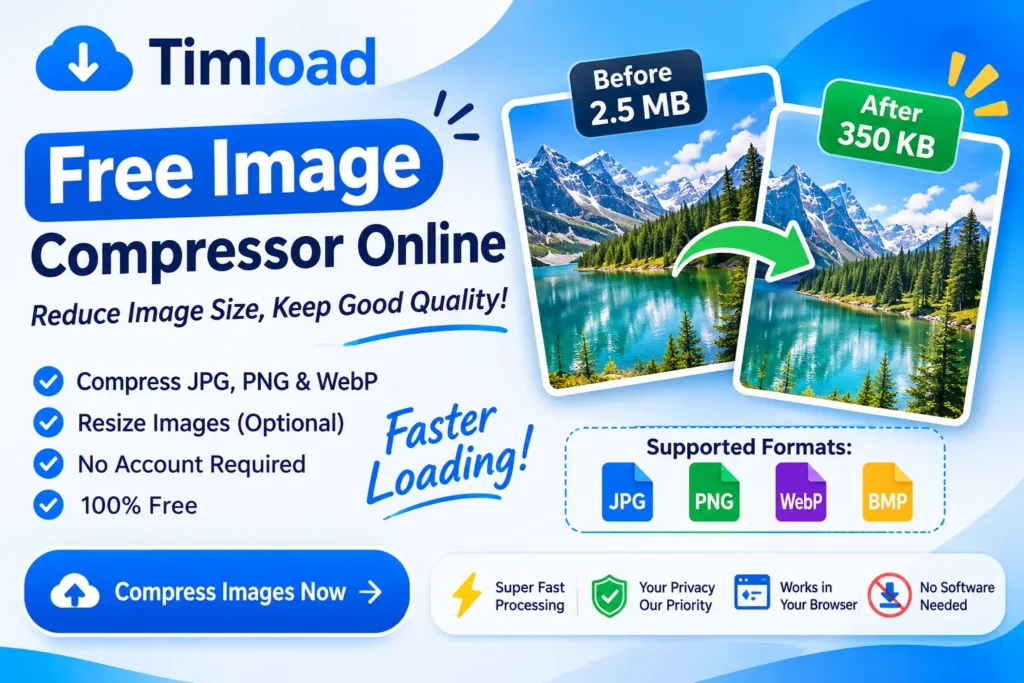
Big photos slow down websites, bounce back from upload forms and fill up email attachments. The Timload image compressor fixes that in a few seconds. Drop in your JPG, PNG, WebP or BMP files, pick a quality level and download smaller copies. Everything runs in your browser, so your pictures never leave your device.
How to Compress an Image Online
- Add your images. Drag them into the upload area or click to pick files. You can add several at once.
- Set the quality. The slider starts at 75%. Lower numbers give smaller files; it applies to JPEG and WebP output.
- Choose an output format. Keep the original format, or convert to JPEG, WebP or PNG. BMP files are saved as JPEG when you keep the original format.
- Resize if you need to (optional). Enter a max width and height in pixels. Leave Maintain aspect ratio ticked so nothing gets stretched.
- Click Compress Images. The Results panel shows the original size, the new size and how much space you saved.
- Download. Save each image on its own, or use Download All to get everything in one ZIP file.
Which Settings Should You Use?
There is no single best setting, because a product photo, a screenshot and a logo behave very differently. These starting points work well for most people:
| What you are compressing | Output format | Quality | Max width |
|---|---|---|---|
| Photos for a website or blog | WebP | 70–80% | 1600–2000 px |
| Photos for email or WhatsApp | JPEG | 70% | 1280 px |
| Upload forms with a 100–200 KB limit | JPEG | 50–65% | 1000–1200 px |
| Screenshots with text | PNG or WebP | 80–90% (WebP) | Keep original |
| Logos and graphics with transparency | PNG or WebP | — | Keep original |
Resizing often saves more space than lowering the quality. A phone photo is usually 4000 pixels wide, while most web pages never show an image wider than 1600–2000 pixels. Cutting the width in half removes about three quarters of the pixels before compression even starts.
JPG vs PNG vs WebP: Which Format Is Smallest?
JPG / JPEG
The standard format for photos. It compresses very well and opens everywhere, from old Windows PCs to government upload portals. Use it when you are not sure what the other side accepts.
PNG
Lossless and great for logos, icons and screenshots with sharp text, but heavy for photos. The quality slider does not shrink PNG files, so convert large PNG photos to JPEG or WebP to compress PNG images properly.
WebP
A modern format that is usually 25–35% smaller than JPEG at the same visual quality and also supports transparency. All current browsers support it, and WordPress accepts WebP uploads, so it is a good default for website images.
When Compressing Images Makes a Real Difference
- Website speed: images are usually the heaviest part of a page. Smaller images load faster on mobile data and help your Core Web Vitals scores.
- Upload limits: job portals, exam forms and visa applications often reject photos above 100 KB, 200 KB or 1 MB.
- Email and messaging: smaller attachments send faster and do not bounce.
- Online stores: product galleries with many photos load much faster when every image is compressed.
- Storage: compressed copies take up less space on your phone, laptop and cloud drive.
Is It Safe to Compress Private Photos Here?
Yes. The tool uses your browser’s built-in Canvas API to re-encode each image on your own device. Nothing is sent to a Timload server for processing, which also makes it fast, because there is no upload or download wait. Close the tab and the images are gone.
Frequently Asked Questions
Is the Timload image compressor free?
Yes. There is no sign-up, no daily limit set by us and no watermark on your images.
Are my images uploaded to a server?
No. Compression happens inside your browser using the Canvas API, so your photos stay on your device. The only extra download is a small ZIP library that loads when you press Download All.
How do I compress an image to 100KB or 200KB?
Choose JPEG or WebP as the output format, set the quality to around 60–70% and enter a max width such as 1600 px. Check the compressed size in the list, and if it is still too big, lower the quality or the width a little and compress again.
Why did my PNG barely get smaller?
PNG is a lossless format, so the quality slider does not apply to it. For a much smaller file, switch the output format to WebP or, if the image has no transparency, to JPEG.
Why is my compressed image bigger than the original?
This happens when the original was already heavily compressed, or when you convert a small JPEG to PNG. Keep the original format or pick a lower quality and try again.
Can I compress several images at once?
Yes. Add as many images as you need, compress them in one go, then download them one by one or all together as a ZIP file.
Related Free Tools
- JPG to PDF Converter – put photos and scans into one PDF
- QR Code Generator – make QR codes for links, Wi-Fi, WhatsApp and contacts
- Merge PDF – join several PDFs into one file